Guide
How to hide photos on iPhone: four ways
Open the photo in Photos, tap the More button, then tap Hide. The photo leaves your Library for a locked album under Utilities. That is the quickest of four ways. A locked note keeps a few pictures beside text behind a Notes password. A vault app keeps them in its own encrypted store behind a code of its own. And limiting each app’s photo access keeps apps, not people, out of your library. Which one fits depends on who you are keeping the photo from.

On this page
Pick by who you are keeping it from
| Way | Keeps the photo from | Doesn’t keep it from |
|---|---|---|
| The locked album in Photos | Someone scrolling your Library | Anyone who knows your iPhone passcode |
| A locked note | Someone opening Notes | Anyone with a Notes password you shared |
| A vault app | Anyone without the vault’s own code | The copy you leave in Photos |
| Limited photo access | Apps you didn’t give it to | A person holding your unlocked phone |
Most people need the first one, and some need the third. The steps for each follow.
Way 1: Move it to the locked album in Photos
- Open Photos and open the photo.
- Tap the More button (three dots), then tap Hide, and confirm.
- For several at once, tap Select in your Library, tap each photo, then tap the More button and tap Hide.
You can also touch and hold a thumbnail in the grid and tap Hide. Both ways are on Apple’s iPhone guide and Apple’s article on the album.
To see the photo again, tap Collections, scroll to Utilities, open the Hidden album, tap View Album, and unlock with Face ID, Touch ID or your passcode (Apple’s iPhone guide). To put it back, open it there, tap the More button and tap Unhide.
This is the quickest way, and its lock is your iPhone’s own. What that lock does and doesn’t stop has a page of its own.
Way 2: Put it in a locked note
Best for a few pictures that belong beside text, such as a receipt with a note about it.
- In Notes, open or start a note.
- Tap the Attachments button and choose the photo.
- Tap the More button, then tap Lock.
- The first time, choose Use iPhone Passcode or Create Password.
Apple’s Notes article says both choices keep the note end-to-end encrypted for iCloud accounts. It also lists what a locked note can’t hold: video, PDFs, audio, tags, and anything in a note you share. A forgotten Notes password can’t be recovered, and Apple can’t help with it.
Two things to watch. The photo you attached is still in your Library until you delete it there. And if you take a picture from inside Notes with Save to Photos on, a copy goes to Photos as well (Apple’s guide to attachments in Notes). How a note and a vault differ is set out in Sealed and a locked note, compared.
Way 3: Keep it in a vault app
Best when the photo should sit behind a code that isn’t your iPhone’s. Sealed: Private Photo Vault is built for this.
- Install it and make a passcode. Sealed is free to download, and Sealed Pro is an optional in-app purchase. When you first open Sealed it takes you through a few screens, asks you to make a passcode, and shows you your recovery key.
- Write down the recovery key. During setup Sealed gives you a recovery key: a long code of letters and numbers, in groups, that can bring your vault back.
- Add the photos. Sealed imports only the photos and videos you choose, and deletes the originals in Photos only when you ask. The free plan holds up to 100 photos.
- Let it delete the originals. After you import photos, Sealed asks whether to delete the originals from Photos or keep them, and says that deleted originals move to Recently Deleted in Photos.
- Empty Recently Deleted in Photos. When you delete photos and videos in Photos, they go to its Recently Deleted album for 30 days, and after that they are permanently deleted.
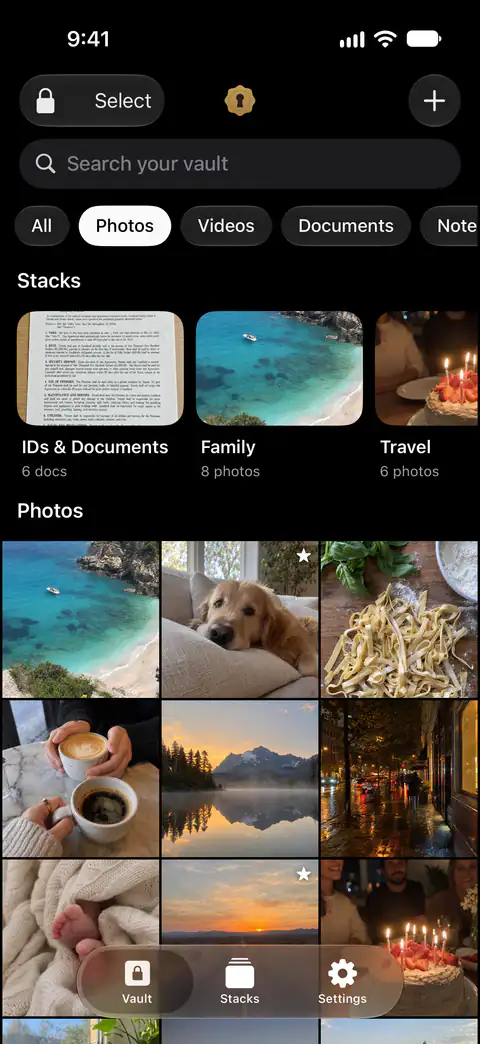
The full walk-through, including what to check before you delete anything, is in moving photos into a vault app.
Way 4: Limit what apps can read
Best when the worry is an app, not a person.
When an app asks for your photos, choose Limit Access and pick only what it needs. To change an app later, open Settings, then Privacy & Security, then Photos, and tap the app. Apple’s Photos privacy page says Full Access gives an app your photos and videos, including the ones in the locked album, even while that album is locked. Apple’s developer documentation says the opposite, and the page on the album’s lock sets the two side by side.
This does nothing about a person holding your phone. For how a picked selection can grow over time, read what limited photo access means.
Where Sealed helps, and where it doesn’t
It helps once the original is gone: the photo is out of the Library and everything that reads it. Photos and videos are sealed the moment they arrive, and afterwards you can remove the originals from Photos if you like.
It helps keep the vault out of view when you switch apps. Sealed locks as soon as you leave it unless you choose a delay, and it covers its contents in the app switcher.
It doesn’t always shut out your iPhone passcode. With plain Face ID unlock on, someone who knows your iPhone passcode can open Sealed through the Face ID prompt.
It doesn’t take videos on the free plan. On the free plan you can add photos. Videos, documents, notes and records need Sealed Pro.
It doesn’t keep your vault through deleting the app, unless backup is on. If you delete Sealed from an iPhone while iCloud Backup is off, the vault on that iPhone is deleted with it.
It can’t let you back in without your passcode or your recovery key. Because your key never reaches us, we cannot recover your vault or reset your passcode for you.
Questions and answers
Can someone find photos I’ve moved to the locked album?
Anyone who can unlock your iPhone can. From iOS 16, Photos keeps its album for set-aside photos, and Recently Deleted, locked by default: they open with Face ID, Touch ID or your iPhone passcode. So the album keeps photos off the grid, not away from a person who knows your passcode.
Is a locked note safer than the locked album?
It asks for something different. In Notes you can lock a note with your iPhone passcode or with a password only for Notes, and Apple says both options use end-to-end encryption for iCloud accounts. But it can’t hold a video. Apple says it doesn’t have access to locked notes and can’t help you open them if you forget your notes password, and that resetting the password doesn’t open notes locked with the old one.
Do I need to delete the original after I add a photo to Sealed?
Yes, if you want it out of Photos. Sealed imports only the photos and videos you choose, and deletes the originals in Photos only when you ask. After you import photos, Sealed asks whether to delete the originals from Photos or keep them, and says that deleted originals move to Recently Deleted in Photos.
Sources
What this page says about Sealed was checked against the app on .
- Apple iPhone User Guide, delete photos and videos or move them out of the Library (iOS 27) — read 13 Nov 2026; the More button while viewing a photo; Select for several; the collection under Utilities, unlocked with Face ID, Touch ID or your passcode
- Apple Support, the Hidden album in Photos (article 104987) — published March 16, 2026, read 13 Nov 2026; touch and hold a photo; where moved photos stop showing; iCloud Photos
- Apple Support, How to lock or unlock notes on your iPhone or iPad (article 102537) — read 13 Nov 2026; More, then Lock; iPhone passcode or a Notes password; what a locked note can’t hold; a forgotten Notes password
- Apple iPhone User Guide, Add photos, video, and more to notes on iPhone (iOS 27) — read 13 Nov 2026; the Attachments button, the Save to Photos setting
- Apple Legal, Photos & Privacy — dated 2025-12-12, read 13 Nov 2026; Allow Full Access and Limit Access for apps
- Sealed on the App Store — the listing for the app this guide uses
Get Sealed
Sealed is free to download, and Sealed Pro is an optional in-app purchase.

Sealed: Private Photo Vault
Sealed is free to download, and Sealed Pro is an optional in-app purchase.