Guide
How to password protect photos on iPhone
You can’t put a password on a single photo, but you can move it somewhere locked: the locked album in Photos, a locked note or a vault app. From iOS 16, Photos keeps its album for set-aside photos, and Recently Deleted, locked by default: they open with Face ID, Touch ID or your iPhone passcode. Only a note with its own password, or a vault app with its own passcode, keeps out someone who knows your iPhone passcode. A vault also takes the photos out of your camera roll.

On this page
Start with who you need to keep out
Three different problems get called “password protecting photos”.
- A glance. Someone borrows your phone, or scrolls past a photo you would rather they did not see.
- Someone who knows your iPhone passcode. A relative, a coworker, a person who watched you type it.
- An app. A program on your phone that asks to read your photo library. That one is a permission, not a password: limited photo access covers it.
Where an option opens with your iPhone passcode, it does nothing against the second problem.
The options side by side
| Option | Opens with | Keeps out someone with your iPhone passcode? | Main limit |
|---|---|---|---|
| A vault app, such as Sealed | Its own passcode, password or pattern | Yes, with one catch, below | The originals stay in Photos until you delete them |
| A locked note | Your iPhone passcode, or a password made for Notes (Apple) | Only with the notes password | Some contents can’t be locked |
| The locked album in Photos | Face ID, Touch ID or your iPhone passcode (Apple) | No | The photos are still in your library |
| A locked app | Face ID, Touch ID or your passcode (Apple) | No | It locks the whole app, not a photo |
| A PDF with a password | The password you set | Yes | It is a copy, and Apple describes it for a Mac (Apple) |
The locked album in Photos
From iOS 16, Photos keeps its album for set-aside photos, and Recently Deleted, locked by default: they open with Face ID, Touch ID or your iPhone passcode. The album lives inside Photos, so the photos are still part of your library. With iCloud Photos on, photos you delete or set aside are deleted or set aside on all your devices.
To find it, open Photos, tap Collections, then scroll to Utilities. You can switch the lock off in Settings, under Apps, then Photos, so check it is still on (Apple guide).
It is a good lock against a glance. It is not a lock against someone who knows your iPhone passcode, because that passcode opens it. Locking the whole Photos app has the same limit; locking Photos or using a vault sets the two side by side.
A locked note
From iOS 16 you can lock a note with your iPhone passcode or with a password made only for Notes, and Face ID or Touch ID can open it.
To lock photos this way, add them to a note, then lock the note with a notes password rather than your iPhone passcode. Check that Lock is offered: some notes can’t be locked, such as one with a PDF in it (Apple). Photos in a note are copies, so delete the originals only once you have checked them, and keep the notes password somewhere safe.
A vault app
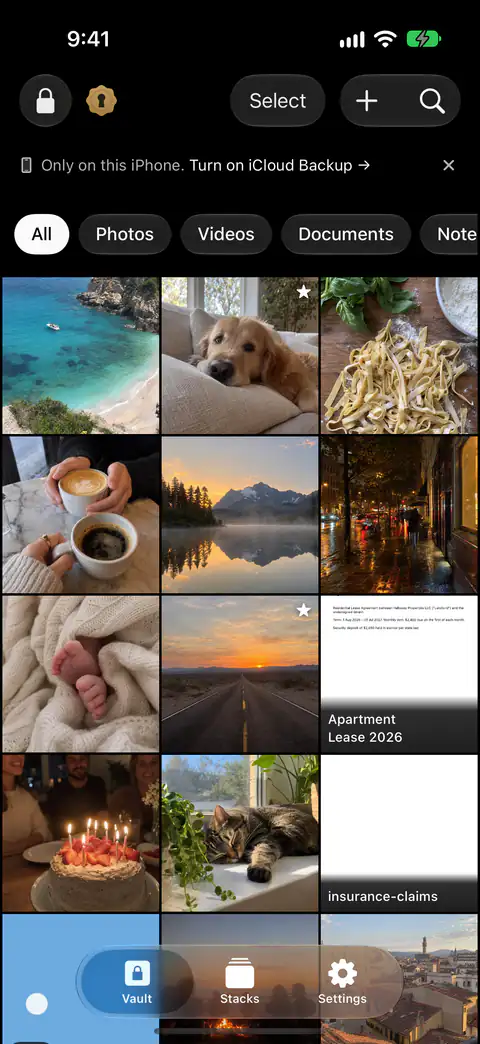
A vault app keeps its own copies of your photos behind its own lock, away from your library. You can open Sealed with Face ID or Touch ID, a 4-, 6- or 9-digit passcode, a password or a pattern. Each file gets its own random 256-bit key, and that key is sealed with your vault key.
There is one catch, from how iOS checks a face. In iOS, an app that asks for owner authentication gets Face ID or Touch ID first, and the device passcode when biometry isn’t available or the person taps the fallback button. With plain Face ID unlock on, someone who knows your iPhone passcode can open Sealed through the Face ID prompt. Dual Lock asks for your passcode and a Face ID match together, and it is part of Sealed Pro.
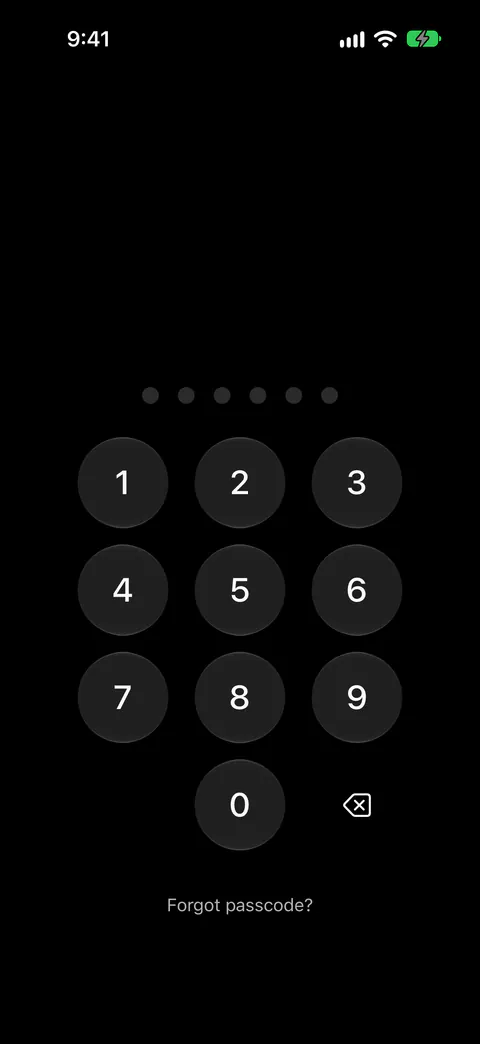
Moving photos in is one step, deleting the originals is another, and Photos then keeps them in Recently Deleted for a while. When you delete photos and videos in Photos, they go to its Recently Deleted album for 30 days, and after that they are permanently deleted. The free plan holds up to 100 photos. On the free plan you can add photos. Videos, documents, notes and records need Sealed Pro.
How to choose
- You hand your phone to people for a minute. The locked album or a locked app is enough, if you accept that your iPhone passcode opens it.
- Someone you live or work with knows your passcode. Use a lock with its own password: a note with a notes password, or a vault app.
- You want the photos out of your camera roll altogether. Only a vault app does that, and only after you delete the originals from Photos.
- You can’t afford to lose them. Read what happens if you forget the password first. A forgotten notes password can’t be reset into your old notes (Apple), and in Sealed the recovery key is the way back. If you forget your passcode, your recovery key lets you set a new one. Forgot your vault password? has the details, and the steps to keep private photos out of your camera roll show how to set Sealed up.
Where Sealed helps, and where it doesn’t
It helps when you want a lock that is not your iPhone passcode, and photos that are not in your camera roll. Sealed has a passcode of its own, a gate inside the app that is separate from your iPhone passcode. Sealed locks as soon as you leave it unless you choose a delay, and it covers its contents in the app switcher.
It doesn’t delete the originals unless you say so. After you import photos, Sealed asks whether to delete the originals from Photos or keep them, and says that deleted originals move to Recently Deleted in Photos.
It doesn’t hold videos or documents on the free plan. On the free plan you can add photos. Videos, documents, notes and records need Sealed Pro.
It doesn’t keep its key from the app while the phone is unlocked, unless Maximum Security is on. Without Maximum Security, the app can read your vault key whenever the phone is unlocked, because the key sits in the Keychain.
It doesn’t get you back in if you forget the passcode and have no recovery key. Because your key never reaches us, we cannot recover your vault or reset your passcode for you. Read the recovery key checklist before you need it.
Questions and answers
Can I put a password on one photo on iPhone?
Not on the photo itself. The locks an iPhone offers work on a collection, a note or an app, so the closest you can get is to move the photo somewhere locked: a locked note, a vault app, or the locked album in Photos. From iOS 16, Photos keeps its album for set-aside photos, and Recently Deleted, locked by default: they open with Face ID, Touch ID or your iPhone passcode.
Can someone who knows my iPhone passcode open the locked album in Photos?
Yes. From iOS 16, Photos keeps its album for set-aside photos, and Recently Deleted, locked by default: they open with Face ID, Touch ID or your iPhone passcode. Because your iPhone passcode is one of the ways in, anyone who has it can open the album.
Does Sealed use my iPhone passcode?
No, it has its own. When you first open Sealed it takes you through a few screens, asks you to make a passcode, and shows you your recovery key. There is one catch, from how iOS checks a face. In iOS, an app that asks for owner authentication gets Face ID or Touch ID first, and the device passcode when biometry isn’t available or the person taps the fallback button. With plain Face ID unlock on, someone who knows your iPhone passcode can open Sealed through the Face ID prompt. Dual Lock asks for your passcode and a Face ID match together, and it is part of Sealed Pro.
Sources
What this page says about Sealed was checked against the app on .
- Apple Support, iPhone User Guide, the locked collections in Photos — iOS 27 guide, read 13 Nov 2026; the two locked collections are under Collections, then Utilities, and open with Face ID, Touch ID or the passcode
- Apple Support, How to lock or unlock notes on your iPhone or iPad — read 13 Nov 2026; a note locks with the iPhone passcode or a notes password, and a forgotten notes password can’t be reset into old notes
- Apple Support, iPhone User Guide, locking an app — iOS 27 guide, read 13 Nov 2026; locking an app with Face ID, Touch ID or your passcode, only on that iPhone
- Apple Support, Password-protect a PDF in Preview on Mac — read 13 Nov 2026; on a Mac, a password that must be entered to open the file
- Sealed on the App Store — the listing for the app this guide uses
Get Sealed
Sealed is free to download, and Sealed Pro is an optional in-app purchase.

Sealed: Private Photo Vault
Sealed is free to download, and Sealed Pro is an optional in-app purchase.