Guide
Deleted a photo vault app? What happens to your photos
Usually, yes. Apple says deleting an app removes it and its data from your iPhone. Apple says that if an app’s data is stored in iCloud, such as photos or documents you saved through the app, that data isn’t deleted when you delete the app. So a vault kept only on the phone goes with the app, while a vault backed up to your own iCloud can come back, as long as you still hold whatever opens that backup. With Sealed, that is your recovery key.

On this page
What happens when you delete any app
Apple says deleting an app removes it and its data from your iPhone. Apple says that if an app’s data is stored in iCloud, such as photos or documents you saved through the app, that data isn’t deleted when you delete the app.
Offloading is the gentler option. Apple says offloading an app frees the storage it uses but keeps its documents and data, while deleting an app removes the app and its related data. If you only need the space, offload a vault app instead of deleting it.
For a vault app, that leaves two questions, and the rest of this page turns on them:
- Where does the app keep your photos? Only inside the app, so they go when it goes? Or also in a backup in your own cloud?
- Can you open what is left? A backup only helps if you still hold whatever opens it: a password, an account, or a key you wrote down.
If the vault had no backup
Then the photos were only in the app, and deleting it removed them. If you delete Sealed from an iPhone while iCloud Backup is off, the vault on that iPhone is deleted with it. Other vault apps say the same about themselves. One help center says plainly that once its app is deleted the data can’t be recovered, because it keeps nothing on servers (Photo Vault: OrNET Lock it, page last modified 14 April 2025, read 28 October 2026).
What you can still try, in this order:
- Recently Deleted in Photos. If you moved photos into the vault and then deleted the originals, they may still be there. When you delete photos and videos in Photos, they go to its Recently Deleted album for 30 days, and after that they are permanently deleted.
- Other copies. A computer, your synced photo library, a chat where you sent the pictures, a shared album.
- A backup of the whole iPhone. Apple says an iCloud Backup includes app data for the apps you have downloaded, but data an app keeps in iCloud Drive is stored in iCloud instead of in the backup. Whether a vault’s files are in that backup depends on the app. For Sealed they are not. The folder where Sealed keeps its encrypted files is left out of iPhone backups, because the vault key never leaves the iPhone it was made on. A phone backup alone won’t bring a Sealed vault back.
If the vault was backed up: getting a Sealed vault back
Deleting Sealed leaves its encrypted backup where it is. Deleting the app doesn’t delete your iCloud backup: Delete iCloud Backup in Settings does. Reinstalling the app starts a new, empty vault: the old one comes back only through a restore with your recovery key.
- Install Sealed again, signed in to the Apple Account you backed up with.
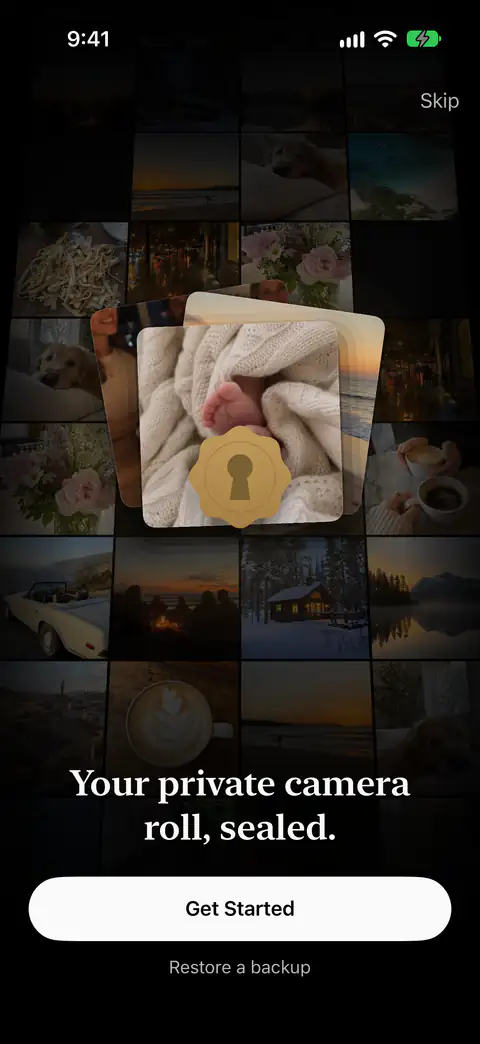
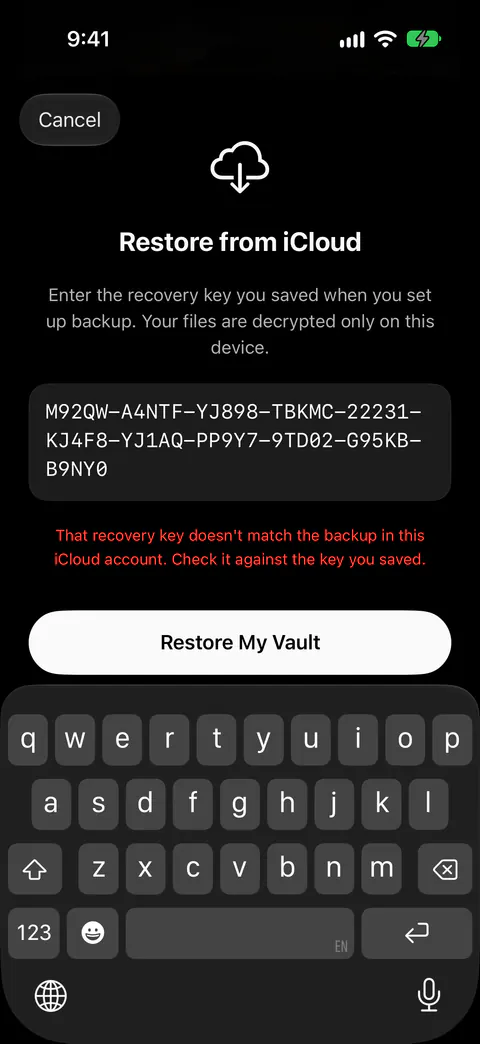
- Tap Restore a backup on the first screen. Get Started would make a new, empty vault instead. On a fresh install, the first screen has a Restore a backup button, you enter the recovery key you saved, and your files are decrypted only on that iPhone.
- Type your recovery key. Before it installs a recovery key, Sealed checks that the key opens the backup in your iCloud account. A well-formed key from another vault is refused with a message that it doesn’t match the backup, and nothing on the iPhone changes.
The rest of the restore, and what to set up again afterwards, is in moving a vault to a new iPhone: a reinstall on the same phone works the same way.
Before you delete a vault app
- Look at the backup line. The vault home shows when you last backed up, or says plainly that your vault is only on this iPhone. If it says the vault is only on this iPhone, don’t delete the app yet.
- Check Settings. With iCloud Backup on, Settings, under Sync & Backup, shows the time of your last backup and how many items are backed up, shows how many are pending when some are waiting, and has a Back Up Now button. Wait until nothing is pending.
- Find your recovery key and read it once. While your vault is open you can see your recovery key again in Settings, under Sync & Backup, then Recovery Key. Make sure the copy you kept matches.
- Export what you can’t lose. Viewing and exporting your own photos is always free.
- Run through the recovery key checklist, which takes a few minutes.
- Moving to a new phone? Keep the old one until the vault opens on the new one. Moving a vault to a new iPhone has the steps.
If you mean to remove the vault for good, deleting the app is not enough: the backup stays. Delete iCloud Backup in Settings deletes your encrypted copy in iCloud and leaves everything on the iPhone.
Where Sealed helps, and where it doesn’t
It helps if backup was on and you kept the recovery key. Backup goes to your own iCloud account, not to a server of ours. Files, names, notes and record fields are encrypted on your iPhone before they are uploaded, so iCloud receives only ciphertext. The first time you save your recovery key, Sealed also turns on iCloud Backup, which is free.
It doesn’t keep your vault if backup was off, and a phone backup is no way back either. If you delete Sealed from an iPhone while iCloud Backup is off, the vault on that iPhone is deleted with it. Sealed keeps its encrypted files out of your iPhone’s own backups, because the key never leaves this iPhone and a copy in a phone backup would not open on a new phone.
It doesn’t open the backup without the key. The recovery key is the only way to decrypt an iCloud backup on a new iPhone. Because your key never reaches us, we cannot recover your vault or reset your passcode for you.
It doesn’t bring back break-in photos or the decoy vault, which never leave the phone. Break-in photos and their locations stay on the iPhone: they are not part of your iCloud backup and never reach us.
Questions and answers
Does deleting the app delete the photos in my Photos app?
No, only the vault’s own copies go with the app. Until you delete them, the originals stay in Photos, outside the vault. If you had already deleted the originals, look in Recently Deleted first. When you delete photos and videos in Photos, they go to its Recently Deleted album for 30 days, and after that they are permanently deleted.
Does Offload App delete my vault?
Apple says offloading an app frees the storage it uses but keeps its documents and data, while deleting an app removes the app and its related data. So offloading keeps the vault’s data on the phone, and reinstalling from the same icon brings the app back to it.
Is my Sealed backup deleted when I delete the app?
No. Deleting the app doesn’t delete your iCloud backup: Delete iCloud Backup in Settings does. To remove everything on purpose, use Delete All Data inside the app first. Delete All Data erases your vault from the iPhone and, when iCloud can be reached, your encrypted backup too.
Sources
What this page says about Sealed was checked against the app on .
- Apple Support, iPhone User Guide, Remove or delete apps from iPhone — deleting an app removes it and its data from the iPhone, while data the app stored in iCloud stays; cited through the ios.delete_app_data and ios.delete_app_icloud_data facts
- Apple Support, How to check the storage on your iPhone and iPad — offloading an app compared with deleting it; cited through the ios.offload_keeps_data fact
- Apple Support, What does iCloud back up? — app data in an iCloud Backup; cited through the ios.icloud_backup_app_data fact
- Photo Vault: OrNET Lock it, help center, Can I recover my data if I deleted the app? — another vault app on what deleting it means; the page was last modified on 14 April 2025, read 28 October 2026 (facts/competitors.yaml)
- Sealed on the App Store — the listing for the app used as the example
Get Sealed
Sealed is free to download, and Sealed Pro is an optional in-app purchase.

Sealed: Private Photo Vault
Sealed is free to download, and Sealed Pro is an optional in-app purchase.