Feature
iCloud backup and restore in Sealed: how it works
Files, names, notes and record fields are encrypted on your iPhone before they are uploaded, so iCloud receives only ciphertext. The first time you save your recovery key, Sealed also turns on iCloud Backup, which is free. The recovery key is the only way to decrypt an iCloud backup on a new iPhone. Sealed can’t see or recover your files.

On this page
How the backup works
Backup goes to your own iCloud account, not to a server of ours. Apple says the data an app keeps in a user’s CloudKit private database is accessible only to that user by default, isn’t visible in the developer portal, and counts toward the user’s iCloud storage.
Your backup is sealed with your random vault key, not with your passcode, so a short passcode doesn’t make the backup easier to open. Backup records have plain types such as VaultItem and SecureNote and random identifiers, so iCloud can see that a backup exists and roughly how many records it holds.
What goes into it
Backup carries your photos, videos and documents, your stacks, your notes and your records.
Some things stay out on purpose:
- Items in the decoy vault are not part of your iCloud backup.
- Break-in photos and their locations stay on the iPhone: they are not part of your iCloud backup and never reach us.
- Your passcodes, the decoy one included, stay on the iPhone where you made them, so a new iPhone starts without a decoy.
When it turns on, and how to check it
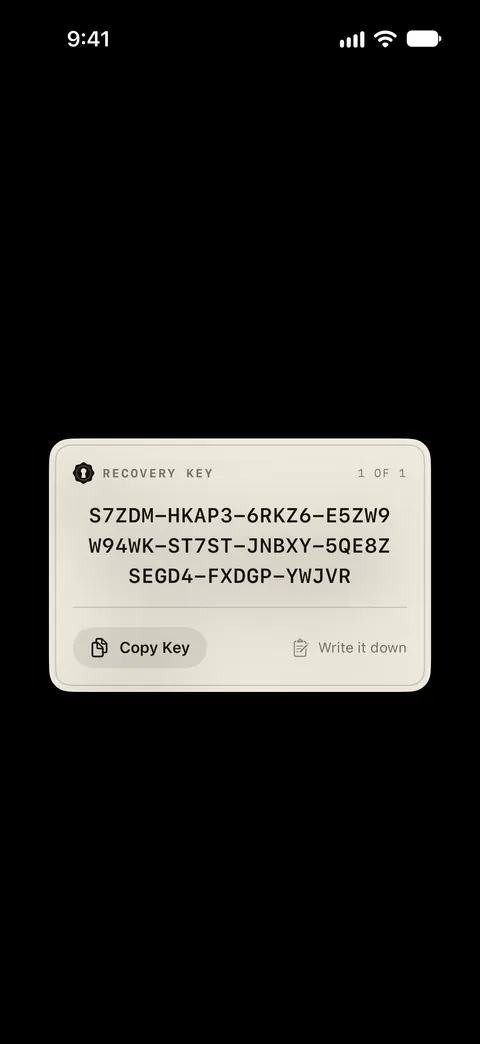
Sealed asks you to save your recovery key before it turns backup on. You can switch iCloud Backup off again in Settings, under Sync & Backup.
Backup needs an iCloud account on the iPhone, and Sealed tells you when you need to sign in. Backup uses your iCloud storage, and when it is full Sealed says so and stops adding new items.
With iCloud Backup on, Settings, under Sync & Backup, shows the time of your last backup and how many items are backed up, shows how many are pending when some are waiting, and has a Back Up Now button. The vault home shows when you last backed up, or says plainly that your vault is only on this iPhone.
Worth knowing before you rely on it: Sealed’s automated tests run a whole vault through backup and a restore on a new phone from the recovery key against a model of iCloud, not against iCloud itself. So look at Last Backup and Backed Up once the first backup has had time to finish.
What a restore needs
- Your recovery key. Find it before you need it. While your vault is open you can see your recovery key again in Settings, under Sync & Backup, then Recovery Key. A sealed copy or your guardians’ parts work on the same screen. To use a sealed copy, you paste it where Sealed asks for your recovery key, and Sealed recognizes it and asks for the phrase you sealed it with.
- The same Apple Account. A restore needs the new iPhone to be signed in to the Apple Account you backed up with, and a connection.
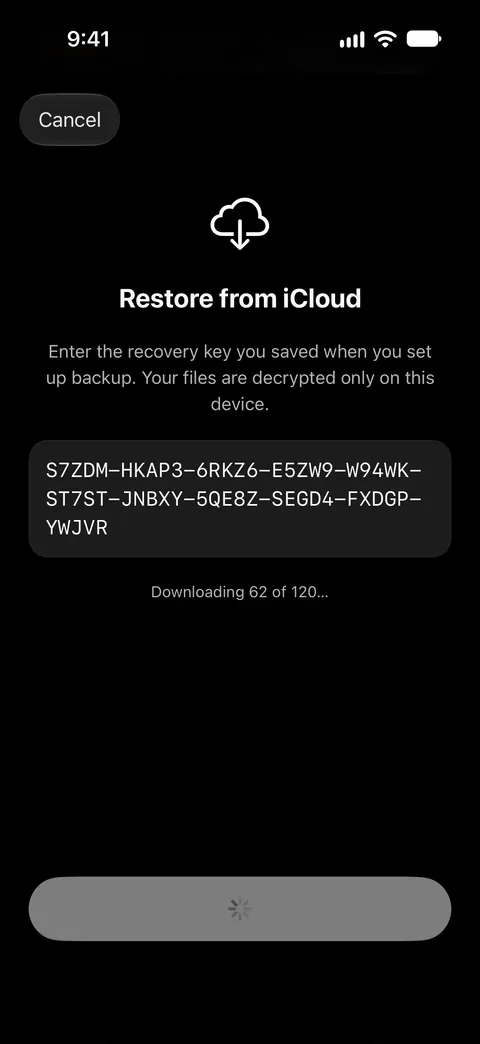
- A fresh install of Sealed. On a fresh install, the first screen has a Restore a backup button, you enter the recovery key you saved, and your files are decrypted only on that iPhone.
- A little patience. On a new iPhone your files come down one by one once the vault is in place, and whatever doesn’t fit stays in iCloud and opens when you tap it.
Before Sealed installs a recovery key on a new iPhone, it checks that the key opens a real record in your iCloud backup, so a key from another vault, or an Apple Account with no backup, changes nothing. If the recovery key has a typo, or belongs to a different vault, Sealed says so and installs nothing.
What is different on the new iPhone
- After a restore with your recovery key, Maximum Security is off, and you turn it on again in Settings.
- A vault restored onto an iPhone with Face ID or Touch ID can have no Sealed passcode yet, and you set one in Settings, under Passcode & Unlock.
- A restored vault keeps backing up, and Sealed switches that on only once the restore has worked.
- Other devices join your backup with your recovery key.
There is a second way a vault reaches a new iPhone. If Sealed moves to a new iPhone together with your other apps, your notes and records arrive but your key, passcodes and encrypted files don’t: Sealed asks for your recovery key and then a new passcode, files that are in your iCloud backup download when you open them, and files that were never backed up are removed. The guide to moving a vault to a new iPhone walks through both.
Three copies, three jobs
| Copy | What it is for |
|---|---|
| This backup | Restoring your vault in Sealed, on a new iPhone |
| The open copy | Opening your files on a computer, without the app |
| Your iPhone’s own backup | Not the vault’s files: Sealed keeps its encrypted files out of your iPhone’s own backups, because the key never leaves this iPhone and a copy in a phone backup would not open on a new phone. |
Space Saver, the Pro part
Space Saver, part of Sealed Pro, keeps originals in your encrypted iCloud backup and frees space on your iPhone. Space Saver keeps a thumbnail on the iPhone, takes a file off it only after its iCloud copy is confirmed, and downloads the file when you open it.
Only taking files off your iPhone is part of Sealed Pro: bringing files back from iCloud never is, even if your plan ends. If your Sealed Pro plan ends, backup keeps running.
Deleting a backup
- Delete iCloud Backup in Settings deletes your encrypted copy in iCloud and leaves everything on the iPhone.
- Deleting the app doesn’t delete your iCloud backup: Delete iCloud Backup in Settings does.
- Delete All Data erases your vault from the iPhone and, when iCloud can be reached, your encrypted backup too.
Where Sealed helps, and where it doesn’t
It helps when a phone is lost, broken or replaced. You can restore your vault on a new iPhone from your backup, with your recovery key.
It doesn’t do these things:
- Let us recover anything for you. Because your key never reaches us, we cannot recover your vault or reset your passcode for you. If you lose both the key and the passcode, there is nobody to ask.
- Keep your recovery key private for you. Anyone who holds your recovery key can open your vault, and Sealed’s printed key sheet says never to keep it in a photo, a message or an email.
- Carry everything. Break-in photos and their locations stay on the iPhone: they are not part of your iCloud backup and never reach us. Your decoy vault and your passcodes stay out too, as above.
- Work without an account or room to store it. Backup needs an iCloud account on the iPhone, and Sealed tells you when you need to sign in.
- Share one Apple Account between two vaults. If your Apple Account already holds a Sealed backup made with a different recovery key, Sealed turns backup off and says so, instead of putting two vaults in one place.
- Prove itself in advance. Sealed’s automated tests run a whole vault through backup and a restore on a new phone from the recovery key against a model of iCloud, not against iCloud itself. Check Last Backup and Backed Up after you turn it on, and try a restore on a spare iPhone if you have one.
Questions and answers
Can Sealed recover my vault if I lose my recovery key?
Because your key never reaches us, we cannot recover your vault or reset your passcode for you. Sealed can’t see or recover your files.
Does backup cost anything, or use my iCloud storage?
Encrypted iCloud backup is free. Apple says the data an app keeps in a user’s CloudKit private database is accessible only to that user by default, isn’t visible in the developer portal, and counts toward the user’s iCloud storage. Backup uses your iCloud storage, and when it is full Sealed says so and stops adding new items.
What happens to my backup if I delete the app?
Deleting the app doesn’t delete your iCloud backup: Delete iCloud Backup in Settings does. If you delete Sealed from an iPhone while iCloud Backup is off, the vault on that iPhone is deleted with it.
Sources
What this page says about Sealed was checked against the app on .
- Sealed on the App Store — the listing, which describes the encrypted backup and the restore
- Apple Developer Documentation, CKContainer privateCloudDatabase — where Sealed’s backup lives, who can open that database, and what it counts against (read 13 Nov 2026)
Get Sealed
Sealed is free to download, and Sealed Pro is an optional in-app purchase.

Sealed: Private Photo Vault
Sealed is free to download, and Sealed Pro is an optional in-app purchase.