Feature
The Sealed recovery key: what it opens, and what happens without it
The recovery key is the code Sealed gives you at setup to get back into your vault when your passcode or your phone is gone. If you forget your passcode, your recovery key lets you set a new one. The recovery key is the only way to decrypt an iCloud backup on a new iPhone. Because your key never reaches us, we cannot recover your vault or reset your passcode for you.

On this page
What the key is
During setup Sealed gives you a recovery key: a long code of letters and numbers, in groups, that can bring your vault back.
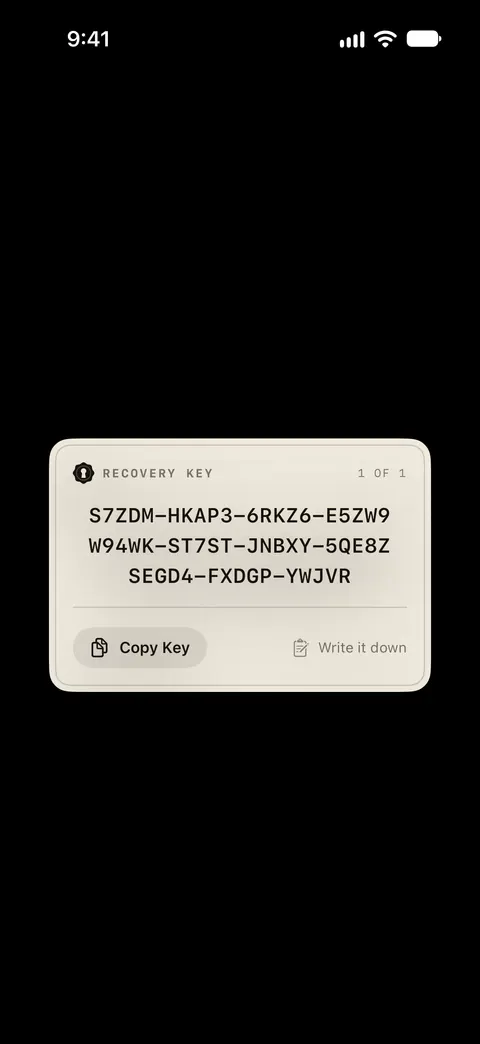
It is not your passcode. Your passcode is a gate in front of the app. It is not part of the key. The key opens the vault itself, wherever the vault is: on this phone, in your backup, or in an open copy on a computer. That is why it deserves the care you would give a house key.
In a vault made by the current Sealed, the recovery key is not the vault key itself: it opens a small envelope that holds the vault key, which is why the recovery key can be replaced.
What it opens
| When this happens | The key does this |
|---|---|
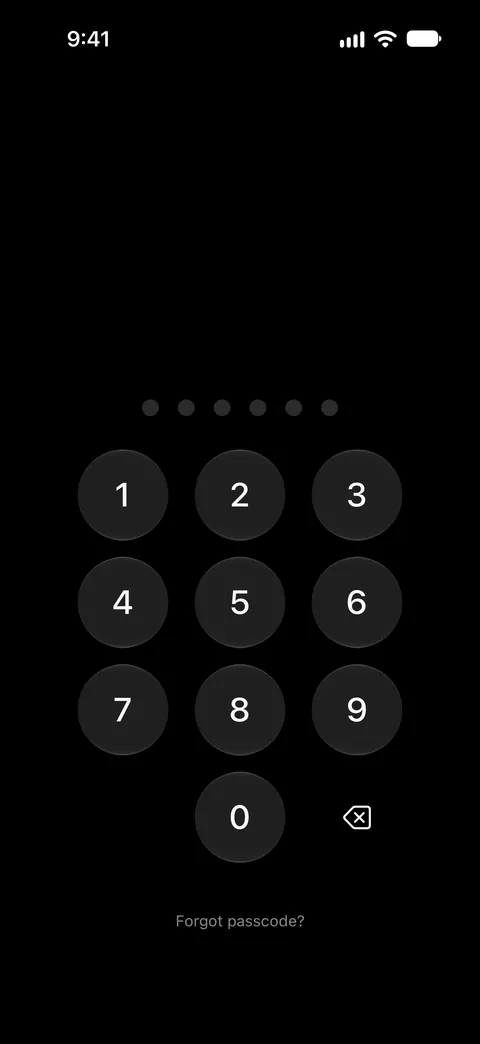
| You forget your passcode | On the lock screen, Forgot passcode? sits under the passcode pad. It asks for your recovery key, and once the key checks out you choose a new passcode. |
| You move to a new iPhone | You can restore your vault on a new iPhone from your backup, with your recovery key. |
| Your face or fingerprint changes under Maximum Security | Before you can turn on Maximum Security, Sealed asks you to save your recovery key, because it is the only way back in if your Face ID or Touch ID ever changes. |
| You lose your vault passphrase | With a vault passphrase, your vault key is sealed under a passphrase you type every time the vault unlocks, and if you lose it only your recovery key opens the vault. |
| You want a time-sealed stack open early | You can open a time-sealed stack early with your recovery key; that can’t be undone, but you can seal the stack again. |
| The app is gone and you need your files | The open copy keeps a copy of your vault in your iCloud Drive, in a folder named Sealed, that opens without the app on any computer, with your recovery key and the Sealed reader. |
Resetting a passcode with it
- Tap Forgot passcode? on the lock screen. A wrong recovery key is not counted as a wrong passcode, and Forgot passcode? still works while Sealed is making you wait after wrong passcodes.
- Type the key, or paste a sealed copy of it. You can type the recovery key in capitals or lower case, with or without dashes and spaces, and Sealed tells you when what you typed is not a valid key. Sealed checks that a recovery key belongs to this vault, and it refuses a valid key from a different vault.
- Choose a new passcode.
- Unlock the way you normally do. Resetting your passcode with the recovery key does not open the vault: you come back to the lock screen, and Dual Lock, location lock and Maximum Security still apply. If Dual Lock is what keeps you out because Face ID can’t be asked, the recovery key also switches Dual Lock off, and Sealed tells you so.
Seeing it again, and replacing it
The key stays in Settings, and you can open it whenever the vault is open. In Settings, under Sync & Backup, the Recovery Key screen offers Save or Print as PDF, Save a sealed copy and Key Guardians, and Make a new recovery key while iCloud Backup is on and up to date.
A new key is for when the old one may have been seen: a photo of it in a shared album, a sheet left on a desk. You can make a new recovery key in Settings; the current one keeps working until the new one is saved and your next backup finishes, and anyone with the old key and an old copy of your backup could still open that copy. Old sealed copies and guardian parts stop working with it, so make new ones.
Copies that outlast the phone
A key kept only on the phone it opens is lost with the phone. Three ways to keep a second copy, each with its own trade-off:
- On paper. Save or Print as PDF gives you a sheet for a drawer or a safe.
- In your email or Notes, locked. A sealed copy can sit where anyone could read it, because it opens only with your phrase.
- With people you trust. Key guardians split the key so that no single person holds it.
The recovery key checklist is the short list to work through today.
What happens without it
- You forgot your passcode, but your face or fingerprint still opens the vault. Go in and set a new one. While your vault is open, Settings, then Passcode & Unlock, then Change Passcode lets you choose a new passcode. The screen asks for the new passcode twice and does not ask for the old one. Dual Lock changes this. Dual Lock asks for your passcode and a Face ID match together, and it is part of Sealed Pro.
- You forgot your passcode and nothing else opens the vault. On the reset screen, Sealed says that without a recovery key the passcode can’t be reset, not by you and not by us.
- You are on a new iPhone. Without the recovery key, what is left of the vault on a new iPhone cannot be opened, by you or by us, and starting over erases it while anything in your iCloud backup stays there.
Where Sealed helps, and where it doesn’t
It helps when you forget your passcode but kept the key. A wrong recovery key is not counted as a wrong passcode, and Forgot passcode? still works while Sealed is making you wait after wrong passcodes.
It helps when you change phones. Before Sealed installs a recovery key on a new iPhone, it checks that the key opens a real record in your iCloud backup, so a key from another vault, or an Apple Account with no backup, changes nothing.
It doesn’t take back a key that got out. You can make a new recovery key in Settings; the current one keeps working until the new one is saved and your next backup finishes, and anyone with the old key and an old copy of your backup could still open that copy.
It doesn’t switch off your other locks. Resetting your passcode with the recovery key does not open the vault: you come back to the lock screen, and Dual Lock, location lock and Maximum Security still apply.
It doesn’t reset a passcode by email or by asking us. Sealed has no account, so there is nothing to sign up for. We run no server, so there is nothing of yours for us to see.
Questions and answers
I forgot my passcode and have no recovery key. What can I do?
On the reset screen, Sealed says that without a recovery key the passcode can’t be reset, not by you and not by us. Because your key never reaches us, we cannot recover your vault or reset your passcode for you. If your face or fingerprint still opens the vault, go in and set a new passcode, and save your key while you are there. While your vault is open, Settings, then Passcode & Unlock, then Change Passcode lets you choose a new passcode. The screen asks for the new passcode twice and does not ask for the old one.
Can Sealed support send me my recovery key?
Because your key never reaches us, we cannot recover your vault or reset your passcode for you. Please don’t email your recovery key to anyone, support included.
Is it the same as my Apple Account recovery key?
No. Apple describes its own recovery key as a 28-character code that helps you recover your Apple Account and its data. Sealed’s key belongs to your vault alone. During setup Sealed gives you a recovery key: a long code of letters and numbers, in groups, that can bring your vault back.
Sources
What this page says about Sealed was checked against the app on .
- Apple Support, How to turn on Advanced Data Protection for iCloud — Apple’s own recovery key is a different thing: a 28-character code for your Apple Account (published April 17, 2026; read 13 Nov 2026)
- Sealed on the App Store — the listing, which describes the recovery key and the backup it unlocks
Get Sealed
Sealed is free to download, and Sealed Pro is an optional in-app purchase.

Sealed: Private Photo Vault
Sealed is free to download, and Sealed Pro is an optional in-app purchase.