Guide · Documents and IDs
Where to store a photo of your passport on iPhone
Keep one clear copy of the photo page, not the whole passport, somewhere with its own lock: a vault app such as Sealed, or a PDF with a password. Keep the number and expiry date as text too, since most forms want only those. Put a paper copy somewhere other than the passport itself. Then delete the copies in Photos, and empty Recently Deleted. The same goes for a photo you took for a renewal.

On this page
What to copy, and what to leave
Most of the time you only need the photo page: the page with your picture, the number, your dates and the two lines of letters at the bottom. That page is what forms, hotels and offices ask for. The other pages rarely need a copy.
| Keep | Why |
|---|---|
| One clear scan or photo of the photo page | Proof of who you are, and every detail in one place |
| The number, the issue date and the expiry date, as text | Most online forms want only these |
| A paper copy of the photo page | It works when the phone is flat, lost or out of reach |
That’s three copies, and each one is a copy someone could misuse. Fewer, well-kept copies beat a handful scattered over email, chats and the camera roll.
Why not the camera roll
A passport page is easy to find in Photos, by you and by anyone holding your unlocked phone.
- Photos brings pictures back on its own. Photos can feature your photos in memories, in featured photos and in the Photos widget, and you can turn that off with Show Featured Content, under Collections and then your account button in Photos.
- Search can find it by its words. You can search Photos by date, place, category, people you have named and text, with an email address or a phone number as Apple’s examples of text. A search for your surname can turn up the page.
- It goes wherever your library goes. With iCloud Photos on, your photos and videos are stored in iCloud so that you can reach them on all your devices. Apple says that with standard data protection it keeps the keys to iCloud Photos (iCloud data security overview).
Where the copy can live instead
| Place | Good for | What it can’t do |
|---|---|---|
| A vault app | The scan and the numbers, behind their own passcode | Help you if you lose both the passcode and the recovery key |
| A PDF with a password | A copy you need to send | Reset a forgotten password; it also locks one file at a time (Apple) |
| A locked note | The numbers, as text | Hold the scan: a note with a PDF in it can’t be locked (Apple) |
| Paper, in a different place from the passport | The day the phone is gone | Lock itself: keep it where you keep other papers |
Seal it in Sealed
- Make a passcode and save your recovery key. When you first open Sealed it takes you through a few screens, asks you to make a passcode, and shows you your recovery key. Keep the key off the phone.
- Add the page. If you already have a photo of it, tap the plus button, then Photos. That works on the free plan. To scan the paper instead, tap Scan Document, which is part of Sealed Pro. A scan is written to a temporary PDF that Sealed imports into the vault and then deletes.
- Delete the original from Photos. After you import photos, Sealed asks whether to delete the originals from Photos or keep them, and says that deleted originals move to Recently Deleted in Photos.
- Empty it from Recently Deleted. Apple keeps deleted photos there for 30 days. Open Photos, tap Collections, then Recently Deleted under Utilities, and delete it (Apple guide).
Not sure where else the page is? Find Private Photos checks your camera roll for passports and IDs, cards, codes, recovery phrases and password screenshots, and offers to seal them. Find Private Photos is free, and the photos it seals follow the same free-plan rules as any import. The Find Private Photos page explains what it checks.
Keep the number as text
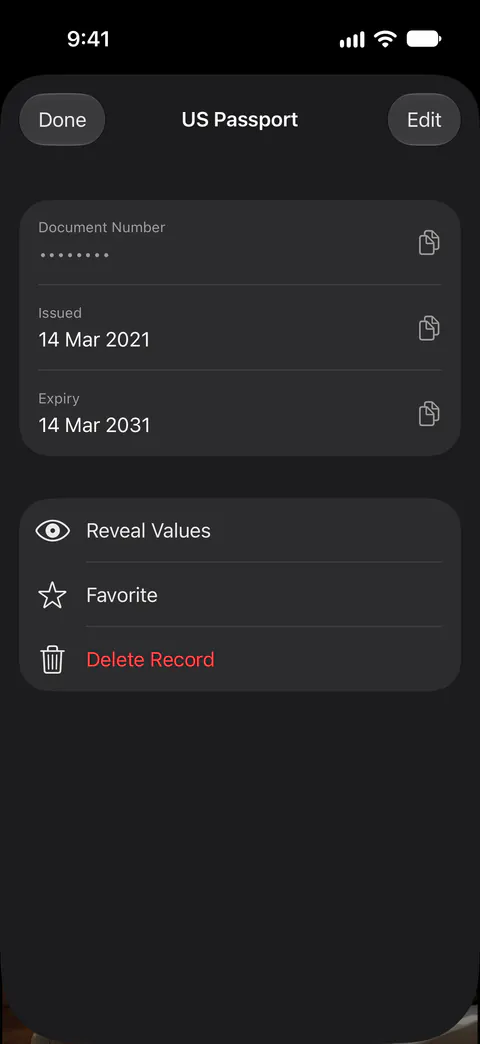
An ID / Passport record has fields for a full name, a document number and an expiry date, and you can add fields of your own. In a record, sensitive fields such as a document number stay masked until you tap Reveal Values and confirm with Face ID or your device passcode, and they mask themselves again after 30 seconds. Records are part of Sealed Pro.
When a form asks for your passport number, you copy it from here instead of zooming into a picture.
A copy for a trip
If the passport goes missing on a trip, a copy of the photo page gives you the number and dates you’ll be asked for when you report it. So bring two copies: the paper one, packed apart from the passport, and the one on your phone. Our page on traveling with documents on your phone has the full checklist.
The photo you took for a renewal
A passport photo you took at home is a clear, straight-on picture of your face, and it tends to leave a trail of test shots. Once the renewal is sent, keep the final picture with your other passport papers and delete the rest from Photos. Our passport photo cropper makes the square crop in your browser. Nothing is uploaded.
Where Sealed helps, and where it doesn’t
It helps keep the page behind a passcode that isn’t your iPhone’s. Sealed has a passcode of its own, a gate inside the app that is separate from your iPhone passcode. Sealed locks as soon as you leave it unless you choose a delay, and it covers its contents in the app switcher.
It helps find old copies in your camera roll. Find Private Photos picks out photos that look like they belong in your vault, and nothing is sealed until you choose it.
It doesn’t reach copies you already sent by email or chat, or a screenshot. Screenshots are saved to your photo library automatically. Until you delete them, the originals stay in Photos, outside the vault.
It doesn’t scan paper or keep records on the free plan. On the free plan you can add photos. Videos, documents, notes and records need Sealed Pro.
It doesn’t get you back in without your passcode or your recovery key. Because your key never reaches us, we cannot recover your vault or reset your passcode for you.
Questions and answers
Should I keep a photo of my passport in my camera roll?
It is better kept elsewhere. Photos can feature your photos in memories, in featured photos and in the Photos widget, and you can turn that off with Show Featured Content, under Collections and then your account button in Photos. You can search Photos by date, place, category, people you have named and text, with an email address or a phone number as Apple’s examples of text. A search for your surname can turn up the page.
Can I lock a note that has a passport scan in it?
Usually not. When you scan a document in Notes, it is saved as a PDF in the note. Apple says you can’t lock a note that has tags, PDFs, audio, video, or Keynote, Pages or Numbers documents, or a note that you share with someone else.
Do I need Sealed Pro to keep my passport in Sealed?
Not for a photo of the page. On the free plan you can add photos. Videos, documents, notes and records need Sealed Pro. Sealed Pro can scan paper with the camera, or import PDFs and other files, into the vault.
Is it safe to email a copy of my passport to myself?
It is the copy most likely to outlive the need for it. It sits in your inbox, on the mail server and on every device that syncs your mail, usually with no lock beyond your account password.
Sources
What this page says about Sealed was checked against the app on .
- Apple Support, How to lock or unlock notes on your iPhone or iPad — published December 11, 2025, read 13 Nov 2026; notes with PDFs can’t be locked
- Apple iPhone User Guide, Lock PDFs in Preview on iPhone — iOS 27 guide, read 13 Nov 2026; the password lock on a PDF
- Apple Support, iCloud data security overview — published January 5, 2026, read 13 Nov 2026; who holds the keys to iCloud Photos
- Apple iPhone User Guide, delete photos and the Recently Deleted collection on iPhone — iOS 27 guide, read 13 Nov 2026; Recently Deleted keeps photos for 30 days, under Collections, then Utilities
- Apple iPhone User Guide, memories and featured photos in Photos on iPhone — iOS 27 guide, read October 28, 2026; memories, featured photos and the Photos widget
- Apple iPhone User Guide, Search for photos and videos on iPhone — iOS 27 guide, read October 28, 2026; searching Photos by text
- Sealed on the App Store — the listing for the app this guide uses
Get Sealed
Sealed is free to download, and Sealed Pro is an optional in-app purchase.

Sealed: Private Photo Vault
Sealed is free to download, and Sealed Pro is an optional in-app purchase.