Guide · Documents and IDs
How to store documents securely on iPhone
Keep each document as a scan or a PDF in a place with its own lock and encryption, not as a photo in your camera roll or a loose file in Files. You can put a password on one PDF at a time, and a locked note can hold text but not a scan. A vault app keeps every document behind one passcode, sorted into groups. Then make sure there is a copy you can open on a new phone. In Sealed, documents need Sealed Pro.

On this page
Four places on an iPhone, and what each one locks
Most documents land on a phone unlocked: a photo of a form in the camera roll, a PDF in Downloads, a scan in Notes. Each of these is open to anyone who can open the phone. Here is what you can use instead.
| Place | What locks it | The catch |
|---|---|---|
| A folder in Files | Nothing of its own | No lock for one folder |
| A PDF with a password | A password per file | One file at a time, and no reset (Apple) |
| A locked note | Your iPhone passcode or a notes password | A note that holds a PDF can’t be locked (Apple) |
| A vault app | Its own passcode | You have to move the files in, and delete the old copies |
The cloud matters too. Apple says that with standard data protection, the keys for iCloud Drive and Notes are kept by Apple, and only Advanced Data Protection changes that (iCloud data security overview).
A locked PDF is fine for one paper you send now and then. How to password-protect a PDF has the steps and a test. For a growing pile of papers, one locked place is easier to look after.
Sort by how you use each document
Not every document should be kept the same way.
| You have | Keep it as |
|---|---|
| Paper: a lease, a letter, a certificate | A scan, saved as one PDF |
| A PDF someone sent you | The file itself, moved into the locked place |
| A number you read out often: a policy, a member ID, an account | Text, not a picture |
| A few lines you need to find again | A note |
Group them by the part of life they belong to, not by date: home, money, health, car, IDs. When someone asks for “the insurance papers”, you open one group.
Set it up in Sealed
The plus button at the top of the vault opens a menu with Photos, Files & Documents, Private Camera, Scan Document, Voice Memo, From Computer (Wi-Fi), From Contacts, New Note and New Record. Documents, notes and records are part of Sealed Pro; photos are free.
- Scan paper. Tap the plus button, then Scan Document. Sealed scans with Apple’s own document scanner, which finds the edges of the page, straightens it and captures several pages in a row, and Sealed turns the pages into one PDF in your vault.
- Bring in files. Tap the plus button, then Files & Documents. A PDF or other file that is not a photo, video or audio file becomes a document in the vault, with a thumbnail that is sealed too, and you find it under Documents.
- Keep numbers as text. Tap the plus button, then New Record. A record keeps a number masked until you reveal it, and the records page shows each kind.
- Make a stack for each group. Stacks and sub-stacks keep your vault organized. Each stack can have its own lock, and stack locks are part of Sealed Pro.
- Delete the old copies in Files, Notes and Photos once the vault copies open.
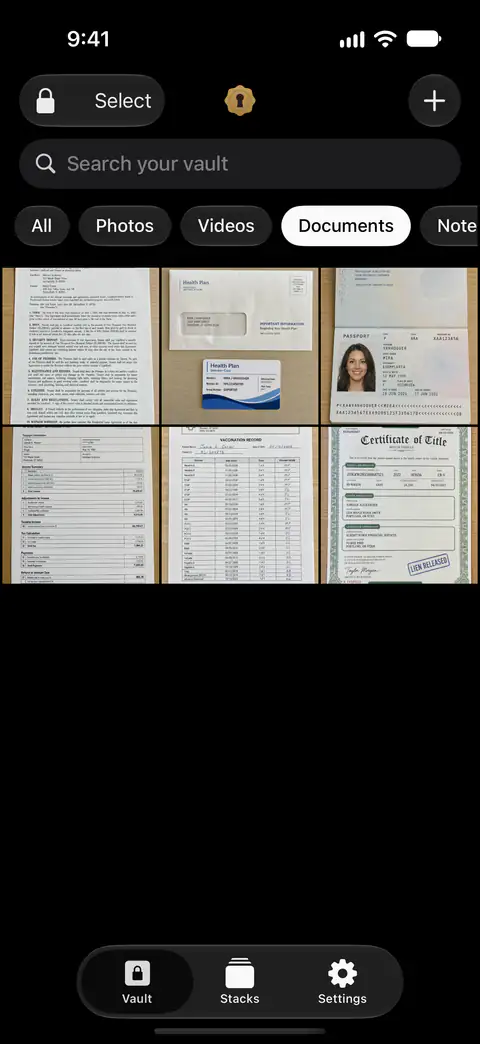
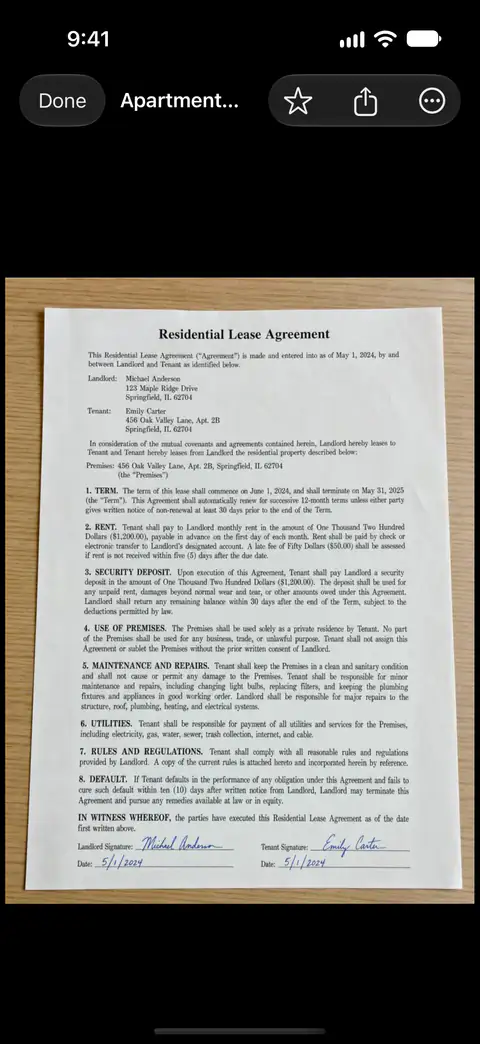
Two kinds of paper have guides of their own: tax documents and medical records and insurance cards.
Make sure you can get them back
A lease or a deed matters years from now, on a phone you don’t own yet. Plan for that on day one.
- Back up. Encrypted iCloud backup is free. Files, names, notes and record fields are encrypted on your iPhone before they are uploaded, so iCloud receives only ciphertext.
- Keep the recovery key on paper. The recovery key is the only way to decrypt an iCloud backup on a new iPhone. The recovery key checklist walks through where to keep it.
- Keep a copy that doesn’t need the app. The open copy keeps a copy of your vault in your iCloud Drive, in a folder named Sealed, that opens without the app on any computer, with your recovery key and the Sealed reader. The open copy is off until you turn it on, and the automatic copy starts only once your recovery key is saved. Open your vault without Sealed explains how it works.
Sending a document to someone
A landlord, a bank or a clinic will ask for copies. Send only what they asked for, and prefer their upload page to email. If you must send it yourself, a PDF with a password works for anyone. You can send someone an encrypted copy of an item that opens in Sealed with a passphrase you choose, and creating one is part of Sealed Pro. The person who receives a share needs Sealed and the passphrase, with no account and no server.
Where Sealed helps, and where it doesn’t
It helps keep every document behind one passcode that isn’t your iPhone’s, each file encrypted on its own. Sealed has a passcode of its own, a gate inside the app that is separate from your iPhone passcode. Each file gets its own random 256-bit key, and that key is sealed with your vault key.
It helps you get them back on a new phone, with the recovery key. You can restore your vault on a new iPhone from your backup, with your recovery key.
It doesn’t remove the copies left in Files, Mail, Notes or Photos. You delete those yourself. Until you delete them, the originals stay in Photos, outside the vault.
It doesn’t keep documents, notes or records on the free plan. On the free plan you can add photos. Videos, documents, notes and records need Sealed Pro.
It doesn’t get you back in if you lose both your passcode and your recovery key. Because your key never reaches us, we cannot recover your vault or reset your passcode for you.
Questions and answers
Is the Files app a safe place for documents?
It is behind your iPhone’s lock, but a folder in Files has no lock of its own, and anyone who can open the phone can open it. By default, Apple keeps the encryption keys for iCloud Photos, Notes and iCloud Drive in its own data centers so that it can help you recover them, and only the optional Advanced Data Protection makes them end-to-end encrypted.
Is a document in Sealed encrypted?
Sealed encrypts every file with AES-256-GCM before it is saved. Each file gets its own random 256-bit key, and that key is sealed with your vault key. Names, notes and the fields of a record are sealed with your vault key too, not just the photos.
Can I keep documents in Sealed on the free plan?
Not as documents. On the free plan you can add photos. Videos, documents, notes and records need Sealed Pro. A photo you took of a page counts as a photo, so that works on the free plan.
What happens to my documents if I lose my iPhone?
If backup was on, they come back. Backup carries your photos, videos and documents, your stacks, your notes and your records. You can restore your vault on a new iPhone from your backup, with your recovery key. The recovery key is the only way to decrypt an iCloud backup on a new iPhone.
Sources
What this page says about Sealed was checked against the app on .
- Apple Support, How to scan documents on your iPhone or iPad — published February 13, 2026, read 13 Nov 2026; scanning in Files
- Apple iPhone User Guide, Lock PDFs in Preview on iPhone — iOS 27 guide, read 13 Nov 2026; the password lock on one PDF
- Apple Support, How to lock or unlock notes on your iPhone or iPad — published December 11, 2025, read 13 Nov 2026; what a locked note can and can’t hold
- Apple Support, iCloud data security overview — published January 5, 2026, read 13 Nov 2026; who holds the keys to files kept in iCloud Drive
- Sealed on the App Store — the listing for the app this guide uses
Get Sealed
Sealed is free to download, and Sealed Pro is an optional in-app purchase.

Sealed: Private Photo Vault
Sealed is free to download, and Sealed Pro is an optional in-app purchase.